A beautiful coaching website doesn't help if visitors leave before it loads. Speed also affects how your site feels: pages that jump around while loading or buttons that react late make a business look less polished, even if nobody can say exactly why.
Here is what Google measures, what usually slows coaching websites down and the fixes that make the biggest difference.
What Google PageSpeed measures
Google's free tool, PageSpeed Insights, gives your page a performance score from 0 to 100 for mobile and desktop. Behind the score are a few key measurements, including Google's Core Web Vitals:
• Largest Contentful Paint (LCP): how long the main content, usually your hero headline or image, takes to appear. Google considers 2.5 seconds or less good.
• Cumulative Layout Shift (CLS): how much the page jumps around while loading. 0.1 or less is good.
• Interaction to Next Paint (INP): how quickly the page responds when someone taps or clicks. 200 milliseconds or less is good.
The mobile test simulates a mid-range phone on a slower connection, which is why mobile scores are almost always lower than desktop. That's also why mobile is the score worth working on.
Why coaching websites are often slow
In my experience, the same few causes come up again and again:
• Huge images uploaded straight from a camera or phone
• Too many plugins and scripts, many of them no longer used
• Sliders and heavy animations in the hero section
• Web fonts loaded from another server, which can make text jump when they arrive
• Embeds loading up front, such as videos, booking calendars, chat widgets and social feeds
• Cheap or overloaded hosting
The fixes that make the biggest difference
Resize and compress your images
Upload images at the size they are actually shown, and serve them in a modern format like WebP. A hero photo rarely needs to be wider than 1,600–2,000 pixels. Images further down the page should load lazily, only when the visitor scrolls near them.
Use page caching
A caching plugin (such as LiteSpeed Cache on LiteSpeed hosting) saves ready-made versions of your pages so the server doesn't rebuild them for every visitor. It is one of the quickest wins on WordPress.
Host your fonts locally and preload the important ones
Loading fonts from your own server and telling the browser to fetch your main fonts first helps text appear quickly and stops it from jumping when the final font arrives.
Load third-party tools only where they're needed
Your booking calendar only needs to load on the booking page, not on every page. The same goes for chat widgets, video players and social feeds. Every external script you remove from the homepage makes it lighter.
Remove what you don't use
Deactivate and delete plugins you no longer need, and avoid page sections that look nice but add little, such as autoplay sliders. Simpler pages are usually both faster and clearer.
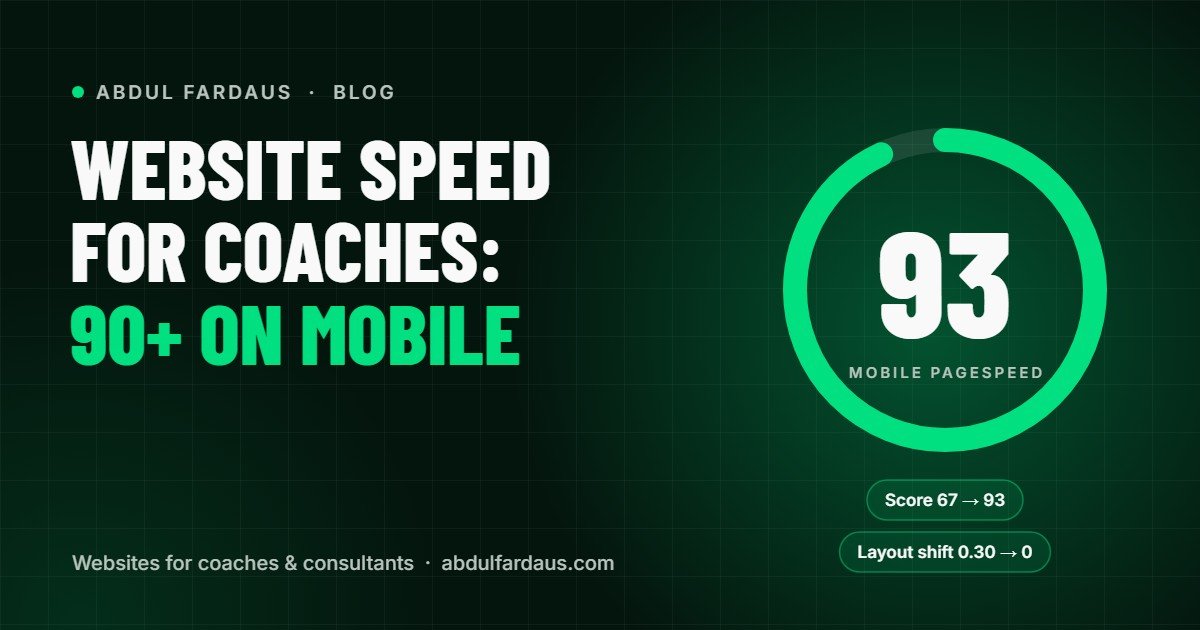
When I tested abdulfardaus.com, the mobile score was 67. The main problem was layout shift: the hero section jumped as the brand fonts loaded (CLS 0.30). After loading the fonts from the site's own server and preloading the two main font files, layout shift dropped to 0 and the mobile score rose to 93, with no design changes.
How to test your own site
Go to PageSpeed Insights, enter your homepage address and look at the mobile result first. Under the score you'll see which measurements need work and a list of suggestions. Fix the biggest items first and test again. Scores vary a little between runs, so test two or three times before drawing conclusions.
Speed is part of the design
When I build a coaching website, speed is planned from the start rather than patched at the end. Every site I launch scores 90+ on mobile PageSpeed, or I keep working on it at no extra cost. If your current site feels slow, send it to me for a free review and I'll include what's slowing it down. You can also see what's included in each website package.